

How to Use ChatGPT: A Complete Guide for Beginners
Many people use ChatGPT to write emails, find information, learn new skills, or get help with daily work. You can ask it a question and get an answer in seconds. But there is much more you can do with it than simply asking questions.
If you know how to use ChatGPT properly, you can also check files, create images, search for information, practice a new language, and work on different projects.
The problem is that many people use only a few of its features. They type a short request, read the answer, and move on. With better instructions and a little practice, you can get answers that are more useful for your needs.
This guide explains how to use ChatGPT for beginners, how to write better prompts, and how to use its main features for work, study, and everyday tasks.
What Is ChatGPT and How Does It Work?
ChatGPT is an AI tool made by OpenAI. You can use it to ask questions, write content, understand difficult topics, plan tasks, and work with information.
Think of it as an assistant that responds to your instructions. You can ask it to explain a topic, help you write an email, check a document, or suggest ideas for your next project.
For example, a student can ask ChatGPT to explain a maths problem step by step. A blogger can use it to plan an article. A digital marketer can ask it to review an advertising report and find areas that need attention.
You can also ask follow-up questions if the first answer is not clear. You do not need to start a new conversation every time you want to change something.
However, ChatGPT does not always give the right answer. It can misunderstand your request or provide incorrect information. Check important facts before using them in your work.
How to Use ChatGPT for Beginners

Getting started with ChatGPT is simple. You do not need any technical knowledge to begin.
Step 1: Open ChatGPT
Visit ChatGPT and sign in or create an account.
Once you open the chat window, you will see a box where you can type your question or instruction.
For example, you can write:
“Explain cloud computing in simple English with three examples.”
ChatGPT will give you an answer. If you want to know more, you can ask another question in the same conversation.
Step 2: Learn About the Available Features
ChatGPT offers different features for different tasks. Depending on your account, you may be able to search the web, upload files, create images, use voice conversations, or work with other connected tools.
You do not need to learn everything on your first day.
Start with normal conversations. Once you understand how to give instructions, try the other features when you need them.
For example, use file uploads when you want help with a document. Use web search when you need current information. Use image generation when you need a visual for a blog or social media post.
You can check the official ChatGPT capabilities guide to see which features are available.
Step 3: Give Enough Information
One common mistake is asking a question without explaining what you actually need.
Suppose you write:
“Write about digital marketing.”
The answer could cover almost anything. You have not told ChatGPT who the article is for, which topics to cover, or how long the content should be.
Try this instead:
“Explain digital marketing to beginners. Cover SEO, Google Ads, social media marketing, and email marketing. Use simple English and give one example for each.”
This gives ChatGPT a much clearer idea of what you want.
Step 4: Ask for Changes When Needed
You do not have to accept the first answer as it is.
If the response is too long, ask for a shorter version. If the explanation is difficult to understand, ask for simpler words. If you need more detail, request examples.
You can also ask ChatGPT to change the answer into a table, checklist, email, or step-by-step guide.
The more clearly you explain what needs to change, the easier it is to improve the result.
How to Use ChatGPT Effectively With Better Prompts
A prompt is simply the instruction you give ChatGPT. It can be a question, a short command, or a detailed description of a task.
Good prompts help ChatGPT understand what you need. They also reduce the amount of time you spend correcting the answer.
Use This Simple Prompt Method
For bigger tasks, try to include these six things in your prompt.
Role: Tell ChatGPT what kind of help you need.
Example: “Act as an SEO content writer.”
Task: Explain what you want it to do.
Example: “Write a blog about how to use ChatGPT.”
Context: Share information about your website, audience, or goal.
Example: “The blog is for beginners who want to learn about AI tools.”
Approach: Explain what the answer should focus on.
Example: “Use practical examples, explain each feature clearly, and avoid unsupported claims.”
Output format: Tell ChatGPT how you want the answer to look.
Example: “Use an introduction, H2 headings, H3 headings, and FAQs.”
Completion condition: Explain what the finished result should include.
Example: “Finish the full article, including FAQs and SEO metadata. Do not add a separate promotional section.”
You do not need to include all six parts every time. A short question may need only a few words. This method is most useful when you are working on a longer article, report, research task, or project.
A Simple Example of Better Prompt Writing
Basic prompt:
“Plan a three-day trip to Goa.”
Improved prompt:
“Plan a three-day trip to Goa for two adults. Our total local budget is ₹20,000, excluding travel to Goa. Include beaches, affordable hotels, vegetarian restaurants, and estimated daily costs. Keep travel time between places in mind and show the plan day by day in a table.”
The second prompt gives ChatGPT the details it needs to make a more useful plan.
ChatGPT Prompts You Can Use for Daily Work
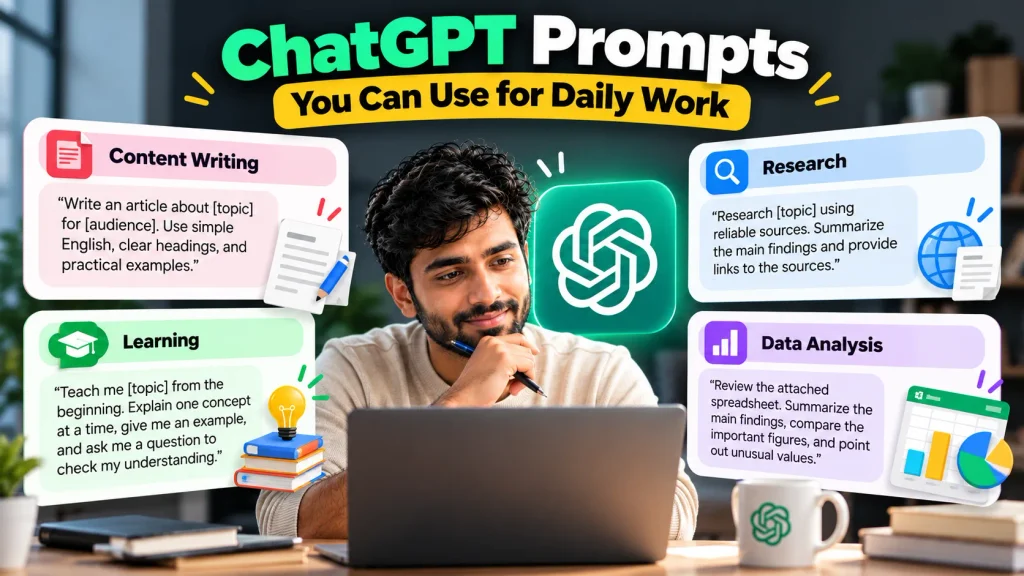
Here are a few prompts you can copy and change according to your needs.
For writing content
“Write an article about [topic] for [audience]. Use simple English, clear headings, and practical examples. Keep the writing natural and answer the main questions a reader may have.”
For research
“Research [topic] using reliable sources. Summarize the main findings, provide links to the sources, and point out any information that could not be verified.”
For learning
“Teach me [topic] from the beginning. Explain one concept at a time, give me an example, and ask me a question to check my understanding before moving to the next topic.”
For working with data
“Review the attached spreadsheet. Summarize the main findings, compare the important figures, and point out unusual values. Do not guess missing data. Explain any limits in your analysis.”
These prompts are starting points. Add your own details to get an answer that fits your task.
How to Use ChatGPT’s Main Features
ChatGPT can help with more than writing and answering questions. Here are some of its main features and how you can use them.
1. Upload Files and Ask Questions About Them
Have you ever needed to read a long PDF or check a large spreadsheet? Instead of reviewing every line yourself, you can upload a supported file to ChatGPT and ask questions about its contents.
For example, you can upload an Excel file containing your Google Ads results and ask it to compare spending, clicks, and conversions.
You can also use file uploads to summarise reports, review meeting notes, compare documents, or find information in a large file.
Try this prompt:
“Review this Google Ads report. Compare the spending and conversions across campaigns. Show the main findings in a table and point out which campaigns need further review.”
ChatGPT can help you understand the data, but always check the figures against the original file before making important decisions.
2. Use ChatGPT Voice Mode
Sometimes typing a long message takes more time than speaking. ChatGPT voice mode lets you have a spoken conversation with the assistant.
You can use it to practice English, prepare for an interview, discuss a business idea, or learn a new topic.
For example, if you are preparing for a job interview, you can ask ChatGPT to act as the interviewer. It can ask you questions one at a time and give feedback on your answers.
Try this prompt:
“Help me prepare for a digital marketing interview. Ask me one question at a time. After I answer, tell me what I did well and what I should improve.”
Voice dictation is another useful feature. It converts your spoken words into text, which you can review and edit before sending.
3. Use ChatGPT to Search the Web
Some questions need current information. For example, you may want to check a recent software update, compare products, or find the latest information about a company.
When web search is available, ChatGPT can look for information online and provide links to sources.
You can use it for industry research, news, product comparisons, and finding official announcements.
For example:
“Find recent official updates about Google Ads conversion tracking. Summarize the changes, include the dates, and provide links to the original sources.”
Do not rely only on the summary. Open the sources and check whether they support the answer.
4. Use ChatGPT Deep Research
A normal question may need only a short answer. Other questions require more time and information.
ChatGPT deep research is designed for tasks that involve examining multiple sources and preparing a detailed report.
For example, you might want to study a market, compare competing businesses, or understand a new technology before writing a blog.
You can give it a detailed research request such as:
“Research the Indian IT training market. Identify the main training categories, common questions from learners, and topics covered by competing websites. Use reliable sources and include links for important facts. Separate your findings from your suggestions.”
The result can help you plan an article or prepare for a business decision. Still, read the sources yourself and check important claims. A long report does not automatically mean that every finding is correct.
5. Create Images With ChatGPT
ChatGPT image generation can help you create images from written instructions. You can use it to develop illustrations, blog visuals, social media graphics, and ideas for advertisements.
The clearer your instructions, the easier it is to get an image that matches your needs.
For example, you could write:
“Create an educational image explaining cloud computing. Show a laptop, a mobile phone, and a business server connected to a cloud. Use a clean blue-and-white design with simple labels. Make it suitable for a blog banner.”
You can then ask for changes to the colours, layout, background, or style.
This can save time when you need a visual idea quickly. However, review the final image before publishing it. Check the text, facts, and layout, especially if you are creating an infographic.
6. Use ChatGPT to Learn New Skills
ChatGPT can explain difficult topics in simple language and help you practise what you have learned.
For example, if you are learning Python, you can ask it to explain variables, functions, loops, and other concepts. You can also share your code and ask for help understanding an error.
Students can use it to practise maths, revise notes, or prepare for exams.
Try this prompt:
“Teach me Python functions as a beginner. Explain the topic with a simple code example, give me a small exercise, and wait for my answer before showing the solution.”
This way, you get a chance to solve the problem yourself instead of simply copying an answer.
7. Understand ChatGPT Agent Mode
Where available, agent mode can help with tasks that require several steps, including working with websites and supported tools.
For example, you may want to compare flights for different dates, collect information about products, or prepare a report using several online sources.
You can give ChatGPT a task with clear conditions and ask it to return the results in a useful format.
Try this prompt:
“Compare five project management tools for a small marketing team. Check their official websites for features and pricing. Present the results in a table and include links to the sources. Mark any details that you could not confirm.”
Depending on the task, agent mode may interact with websites or tools on your behalf. Check its work before making purchases, sending messages, or submitting forms. Some actions may require your approval.
How to Use ChatGPT for Work and Productivity
ChatGPT can help you with many tasks that take time during a normal working day. It is most useful when you give it a clear job and review the result before using it.
Use ChatGPT for Content Writing
If you write blogs, website pages, or social media posts, ChatGPT can help you plan your content and improve your drafts.
You can use it to generate topic ideas, prepare article outlines, explain difficult subjects, and find questions worth answering.
For SEO content, provide the primary keyword, target audience, search intent, and the topics you want to cover.
For example:
“Prepare an outline for a blog targeting ‘how to use ChatGPT’. The audience is beginners. Include the main features, practical examples, common mistakes, and FAQs. Avoid repeating the same topic under different headings.”
You should still check the facts, add your own ideas, and edit the draft before publishing it. The final article should help readers, not simply repeat information from other websites.
Use ChatGPT for Digital Marketing
Digital marketers can use ChatGPT to help with keyword research, ad copy, landing page content, email campaigns, and campaign reports.
For example, you can share a Google Ads search terms report and ask it to group the terms by intent. You can also ask it to suggest headlines for a training course or review the content of a landing page.
Try this prompt:
“Review this Google Ads search terms report for an IT training course. Group the terms by search intent, identify irrelevant searches, and suggest terms that may need to be reviewed for negative keywords. Use the actual report data and explain where more information is needed.”
ChatGPT can help organise the work, but it cannot replace your campaign data or knowledge of the business. Check conversion quality, costs, and actual results before making changes.
Use ChatGPT for Business Research
Business owners and freelancers can use ChatGPT to compare services, review customer feedback, plan new projects, and prepare research reports.
Suppose you want to introduce a new service. You could ask ChatGPT to prepare a list of competitors, compare their publicly listed services, and identify questions that need more research.
This gives you a starting point for further work.
Do not treat estimates or suggestions as confirmed market facts. Check important numbers and business details against reliable sources.
Use ChatGPT for Everyday Planning
You can also use ChatGPT to plan a holiday, prepare a study timetable, organise a weekly task list, or create a shopping list.
The key is to provide the details that affect the plan.
For a travel itinerary, share your dates, budget, interests, and transport preferences. For a study timetable, explain which subjects you need to cover, how much time you have, and when your exams begin.
A plan based on your actual needs is more useful than a general list of suggestions.
ChatGPT Custom GPTs vs. Projects
If you use ChatGPT regularly, you may want to keep related work organised or create an assistant for a task you repeat.
Custom GPTs and Projects can help, but they serve different purposes.
A custom GPT is an assistant set up for a particular type of work. For example, you could create one that follows your preferred writing style and helps prepare social media posts.
A Project is a workspace where you can keep related chats, files, and instructions together.
For example, if you manage a blog, you could create a Project for that website and keep its keyword research, content plans, and article drafts in one place.
| Feature | What it is used for | Example |
| Custom GPT | Repeating a particular type of task | An assistant for writing social media posts |
| ChatGPT Project | Keeping related work together | A workspace for managing a blog |
Choose a custom GPT when you want a reusable assistant for a defined task. Choose a Project when you need a place to manage an ongoing body of work.
The available features and setup options may vary by account.
ChatGPT Memory, Personalization, and Scheduled Tasks
ChatGPT also has features that can help you manage repeated work and adjust how it responds.
ChatGPT Memory and Personalization
Memory can help ChatGPT remember certain details and preferences that you have allowed it to save.
For example, you may prefer short answers, simple English, or a particular format for your blog outlines. When relevant information is available through memory, you may not need to repeat these preferences in every conversation.
You can review and manage saved memories in the settings.
However, do not assume that ChatGPT will remember every detail. Include important information in your prompt when it affects the result. Avoid sharing private or confidential information unless it is necessary and appropriate.
Temporary Chat
Temporary Chat is useful when you want to have a conversation that does not appear in your regular chat history.
According to OpenAI’s Temporary Chat guide, temporary chats do not create or update memories. OpenAI may retain a copy for up to 30 days for safety purposes.
Temporary Chat should not be treated as a guarantee that all information is erased immediately. Avoid entering passwords or unnecessary confidential details.
Scheduled Tasks in ChatGPT
If scheduled tasks are available in your account, you may be able to set reminders or ask ChatGPT to carry out certain recurring tasks.
For example, you could schedule a weekly reminder to review your website traffic or prepare for an upcoming meeting.
A simple prompt might be:
“Every Monday, remind me to review my website traffic, search rankings, and content publishing schedule.”
Check the task settings after creating a schedule. The available options depend on your account and the tools supported for that task.
Common ChatGPT Mistakes to Avoid
You can get more from ChatGPT by avoiding a few common mistakes.
1. Giving Too Little Information
A request such as “Write a blog about SEO” leaves many details unanswered. Explain the topic, audience, purpose, and format so ChatGPT has a clearer idea of what you need.
2. Believing Every Answer
ChatGPT can give incorrect answers or outdated information. Check important facts against official websites or other trusted sources.
3. Copying the First Draft Without Checking It
The first answer may contain repeated points, weak examples, or information that does not fit your audience. Read the draft and make changes before using it.
4. Using the Wrong Feature
You do not need deep research for every question. A normal conversation may be enough for a quick explanation, while file analysis may be more useful for a spreadsheet.
Choose the feature that fits the task.
5. Sharing Private Information
Avoid uploading passwords, confidential client records, or sensitive business documents without checking the relevant privacy settings and your organisation’s rules.
ChatGPT can be useful, but you should still decide what information is appropriate to share.
Frequently Asked Questions About ChatGPT
How do I use ChatGPT for the first time?
Open chatgpt.com, sign in or create an account, and type a question in the chat box. Start with a simple topic and ask follow-up questions if you need more detail.
How can I get better answers from ChatGPT?
Give clear instructions, explain your situation, and tell ChatGPT what kind of answer you need. You can also provide examples and ask it to correct or improve the first response.
Can ChatGPT analyse Excel files?
Yes. ChatGPT can analyse supported spreadsheet files when file uploads and the required tools are available. It can help summarise data, compare figures, and identify patterns. Check the results against your original spreadsheet.
Can ChatGPT search for current information?
ChatGPT offers web search for finding information online. When using it for current facts, check the source links and publication dates.
Can students use ChatGPT for learning?
Yes. Students can use ChatGPT to understand topics, practise questions, review notes, and learn from mistakes. It is better to use it to understand a subject than to copy answers without learning the steps.
Can ChatGPT create images?
Yes. Image generation is available through supported ChatGPT features. You can describe the image you want and request changes to its style, layout, or colours.
What is the difference between ChatGPT and a custom GPT?
ChatGPT is a general-purpose AI assistant. A custom GPT is set up for a more specific task using its own instructions and supported features.
Is ChatGPT always correct?
No. It can misunderstand a question or provide incorrect information. Check important claims and use reliable sources before relying on an answer.
Final Thoughts
Learning how to use ChatGPT does not have to be difficult. Start by asking clear questions and explaining what you need. Once you are comfortable with normal conversations, try features such as file uploads, web search, voice mode, and image generation.
You do not need to use every feature. Focus on the ones that help with your work or studies.
For example, if you write blogs regularly, start by using ChatGPT to prepare outlines and review drafts. If you work with spreadsheets, try asking it to explain your data. If you are learning a new skill, ask it to teach you one topic at a time.
The best way to learn is to use ChatGPT for a real task, check the result, and improve your instructions as you go.
Official Resources
If you want to learn more about specific features, these official guides can help:
- ChatGPT capabilities overview
- Uploading files to ChatGPT
- Projects in ChatGPT
- Temporary Chat in ChatGPT
- Scheduled tasks in ChatGPT



Leave a Reply
You must be logged in to post a comment.